An image can be either from a URL, or from the chatbot's media library. For best results, make sure your image uses the recommended dimensions.
- Click the Image message type to add an image message, then configure your image.
- Drag the handles on the left to re-order the passage content.
- Click the delete icon to delete the image.
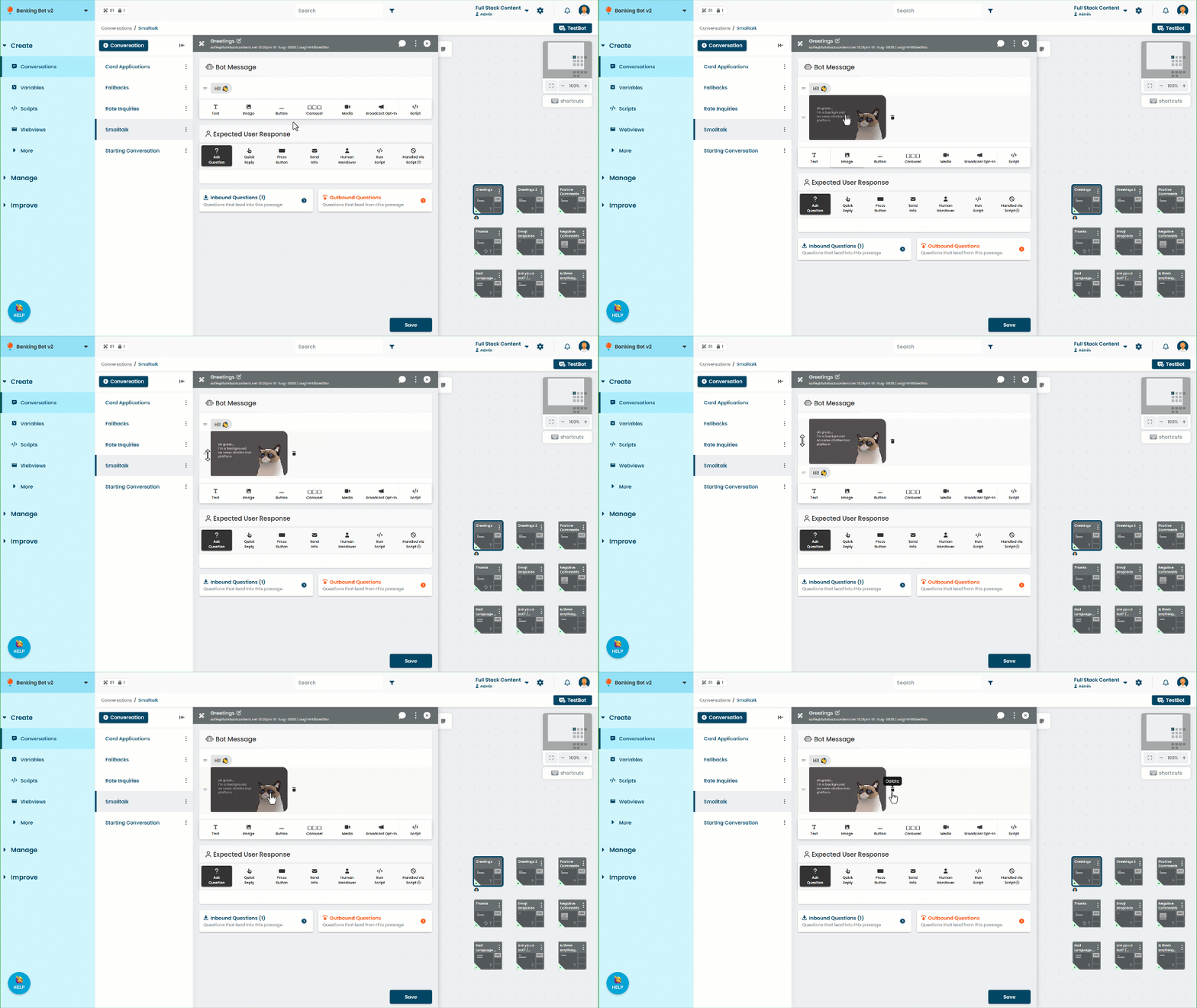 Configure an image message
- Click Create in the left navigation, then click Conversations.
- Click the conversation with the passage you want to edit.
- Click the passage you want to edit.
- Click the placeholder image to choose the image to send.
Either:- Paste a publicly available URL in the Image URL field.
- Drag and drop the image you want to send into the media library.
- Select an image that has already been uploaded to the media library.
- Click Save.
Recommended dimensions
Images may appear slightly differently on different chat platforms. For best results, use either:
- A square image with a 1:1 ratio, 780px x 780px.
- A landscape image with a 1:1.91 ratio, 780px x 410px.
Images can be PNG, JPG, or animated GIFs. To ensure your image loads quickly for your users, keep the file size under 500kb. For static images like PNGs and JPGs, a file size of 100-150kb is recommended.
What if my image is a different size?
You can still use an image that isn't square. Wide images display better than tall images.
Keep your ratio under 1:2. That is, the width of the image should be less than double the height, or the sides of the image will be cropped. The same applies for tall images: if the height of the image is more than double the width, the top and bottom of the image will be cropped.