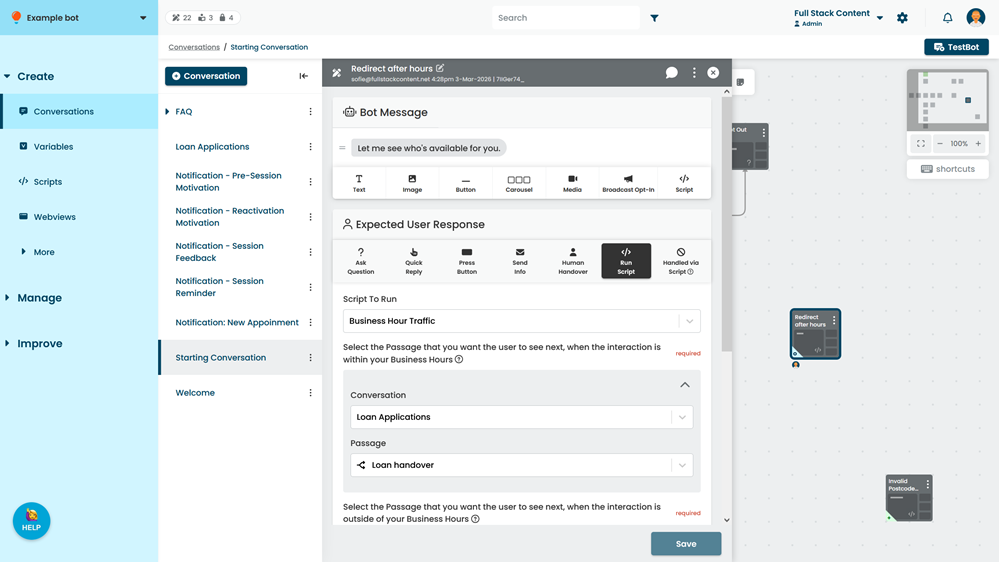
When you have written your script, you can add it to a passage as either a script bubble in the bot message, or a script that will run after the chatbot user responds.
Add a script to the bot message
To add your script in the Bot Message:
- Click Create in the left navigation, then click Conversations.
- Click the conversation with the passage you want to edit.
- Click the passage you want to add a script to.
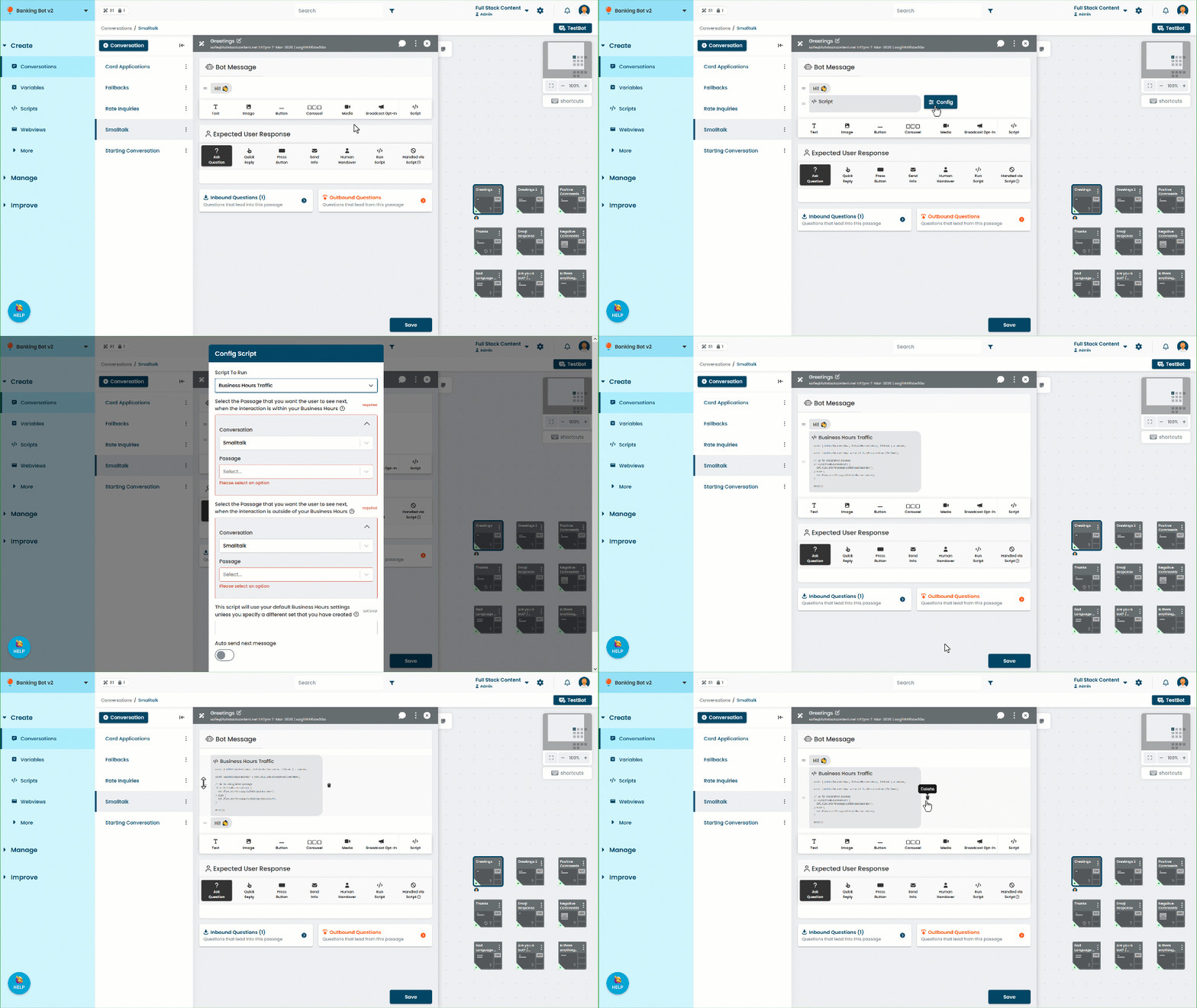
- Click Script in the Bot Message area.
- Click the script bubble that appears.
- Click Config.
- Select the script you want to run.
- Complete any defined script parameters.
- If you want the conversation flow to automatically continue when the script finishes, turn on the Auto send next message toggle.
- Click Save.
To send or not to send?
The Auto send next message toggle controls whether the chatbot automatically sends the next message in the passage when the script has finished. If your script does not send a message or direct the chatbot to a passage and you have Auto send next message set to off, the chatbot will not continue the conversation flow when the script ends.
Run a script after the chatbot user responds
To run a script after the user responds:
- Click Create in the left navigation, then click Conversations.
- Click the conversation with the passage you want to edit.
- Click the passage you want to add a script to.
- Click Run Script in the Expected User Response area.
- Select the script you want to run.
- Complete any defined script parameters.
- Click Save.